A few weeks ago I had one of those glamorous design system tasks.
No, not designing shiny new components.
Typography audit.
I needed to understand every typography style currently used across a product before mapping them into a new design system.
Normally that means:
- Open page
- Inspect element
- Copy values
- Paste into a spreadsheet
- Repeat…
- Somewhere around page six, start questioning your life choices.
There had to be a better way.
Turns out there was.
My AI Team
Instead of doing everything myself, I let each AI do what it does best.
- Claude Code → browser operator
- Playwright MCP → the eyes
- ChatGPT → analyst
- Me → design system designer making the final decisions
AI wasn’t replacing my job.
It was replacing the boring parts of my job.
Step 1 — Give AI a Browser
Claude Code is smart, but it can’t magically see your website.
So the first thing I did was give it a pair of eyes.
I asked Claude Code to install Playwright MCP, which lets Claude control a real Chromium browser.
Now instead of saying:
“Please inspect this page.”
Claude could literally:
- open the page
- inspect every visible element
- run JavaScript
- read computed styles
- organize everything into structured data
Pretty cool.
Step 2 — Let AI Write the Audit Prompt
Ironically…
I didn’t even write the audit prompt myself.
I asked AI to help me write it.
After a bit of back-and-forth, I ended up with this monster prompt.
(Feel free to copy and adapt it for your own projects.)
Typography Audit Prompt
Use Playwright MCP to run a raw typography audit on the selected public web pages below.

Important: Do not analyze, interpret, recommend, or summarize design-system implications yet. Only retrieve and organize raw typography data.

Pages to audit:

1. ...
2. ...
3. ...
4. ...
5. ...
6. ...
7. ...
8. ...
9. ...
10. ...

Audit requirements:

For each page, inspect visible text elements only. Include headings, body text, links, buttons, labels, captions, navigation text, form labels, helper text, and any other visible text.

For each unique computed typography style, capture:

* Page URL
* Text sample
* Element tag
* CSS selector or closest useful class name
* Font family
* Font size
* Font weight
* Line height
* Letter spacing
* Text transform
* Text color
* Text decoration
* Approximate usage role if obvious from context, such as hero heading, body paragraph, CTA label, nav item, card title, form label, caption, legal text
* Number of instances on that page
* Example location or section name where it appears

Then consolidate across all pages into a raw typography inventory.

Output format:

# Typography Inventory

## Scope

List all audited URLs.

## Per-page typography inventory

For each page, provide a table:

| Style ID | Count | Text sample | Element/tag | Font family | Size | Weight | Line height | Letter spacing | Color | Transform | Decoration | Example location | Selector/classes |

## Cross-page unique typography styles

Provide a consolidated table of unique typography styles across all audited pages:

| Style ID | Total instances | Pages found | Font family | Size | Weight | Line height | Letter spacing | Color | Transform | Decoration | Example text samples | Example URLs |

## Raw notes

Include any technical notes only, such as pages that failed to load, dynamic content that required interaction, or styles that could not be captured.

Rules:

* Do not crawl beyond the 10 listed pages.
* Do not include hidden elements.
* Do not include duplicate rows when the computed typography style is identical on the same page.
* Do not make design recommendations.
* Do not group styles into design-system tokens yet.
* Do not infer final roles if unclear. Use "unknown" when unsure.
* Do not include screenshots unless needed for locating an example.
* Save the result as a Markdown file named TYPOGRAPHY-INVENTORY.md.
One thing I like about this prompt is that it never asks Claude to make design decisions.
It only asks for raw facts.
That’s an important distinction.
Step 3 — Go Make Tea ☕
Then…
I did absolutely nothing.
Seriously.
Claude opened all ten pages one by one.
For every page it:
- waited for everything to load
- inspected every visible text element
- read the computed typography styles
- grouped identical styles together
- counted instances
- generated a Markdown report
Meanwhile…
I made myself a cup of tea.
This might be my favourite part of AI-assisted design.
Step 4 — Hello, Typography Inventory
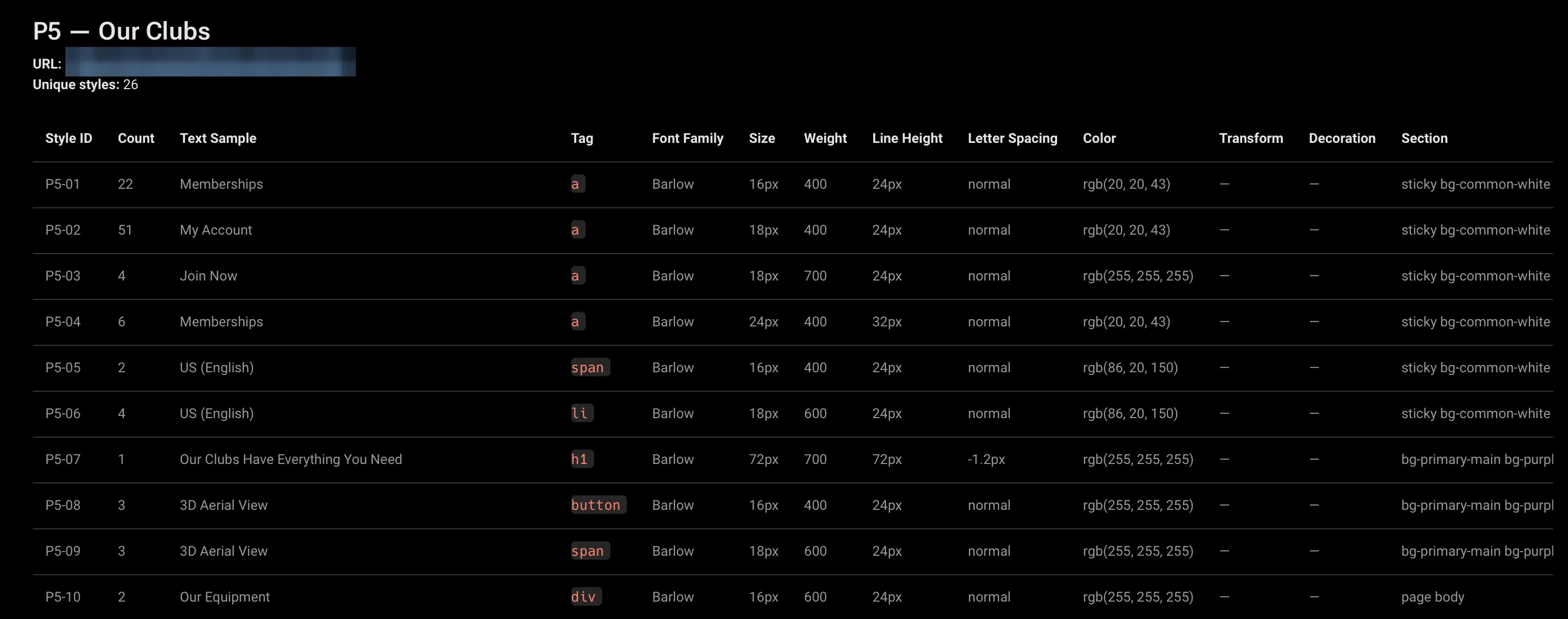
About 15–20 minutes later…
Boom.
Claude handed me a Markdown file containing hundreds of lines of raw typography data.
I wasn’t going to read every line—and I didn’t need to.
The real value is having a complete inventory of everything the browser found. Whenever I need to verify AI’s analysis later, I can instantly search this file instead of reopening pages and inspecting elements again.
This inventory became my source of truth for reviewing and validating AI’s work throughout the rest of the audit.
Step 5 — Time for a Different AI
Now Claude’s job was done.
It collected the data.
Next I switched to ChatGPT.
Why?
Because now I wanted analysis instead of extraction.
I simply uploaded the generated inventory and asked:
Here’s the typography inventory. Do the grouping and analysis for me, then make the Typography Mapping Table with all typography variances, details, and recommended design system mappings. Don’t forget references.
Different AI.
Different responsibility.
Same workflow.
Step 6 — More Tea ☕
Again…
I waited.
Honestly, I think AI has significantly increased my tea consumption.
I’m okay with that.
Step 7 — Hello, Typography Mapping Table
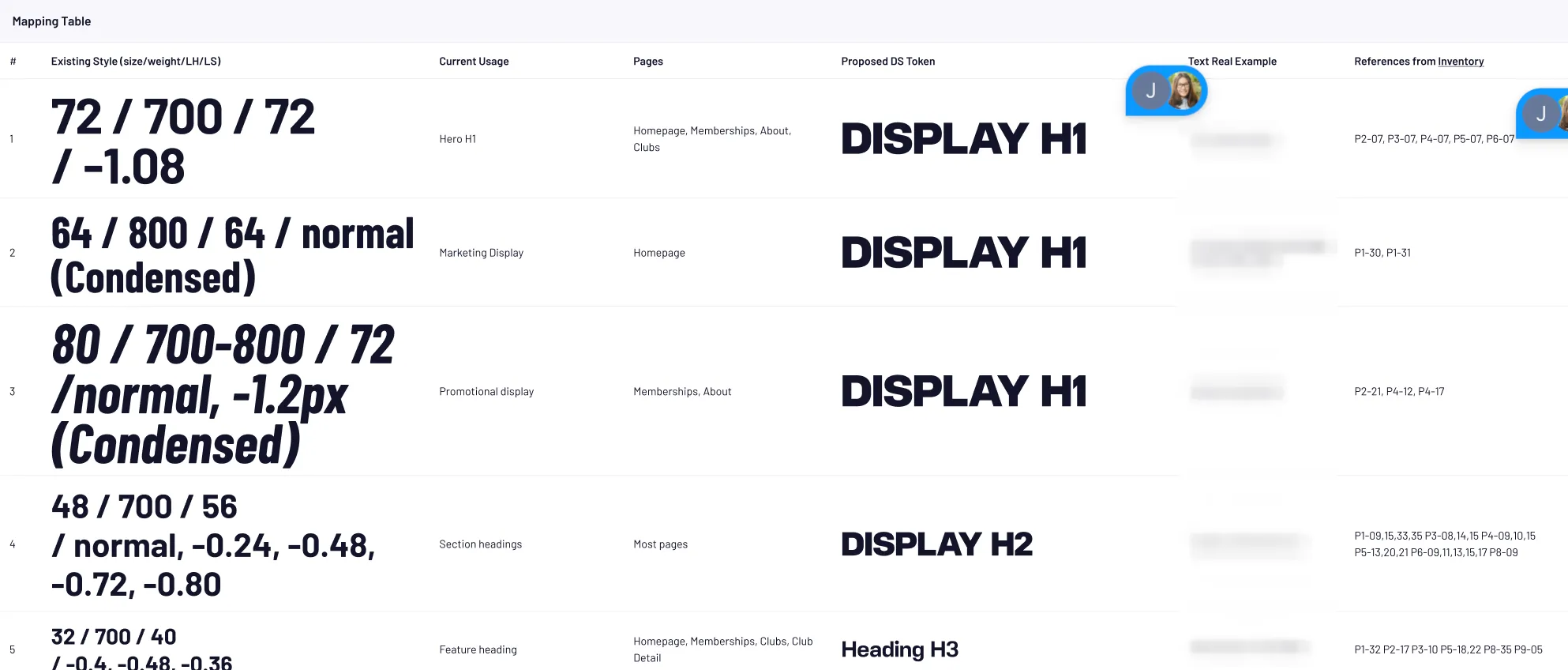
A few moments later I had something much more useful than raw data.
A complete Typography Mapping Table.
Instead of manually comparing every font size across ten pages, I could immediately start answering questions like:
- Can these two styles merge?
- Is this typography already in the design system?
- Is this just a one-off?
- Should this be deprecated?
- Is this actually from a third-party widget?
Now that’s the interesting work.
Step 8 — Review Like a Designer
The AI wasn’t perfect.
And honestly…
I didn’t expect it to be.
I still reviewed everything.
Added missing notes.
Adjusted mappings.
Corrected a few assumptions.
Because AI is great at collecting, grouping and organizing information.
I’m still better at deciding what should happen next.
At least for now. 😉
What Surprised Me
The biggest surprise wasn’t the time saved.
It was what AI found.
One embedded third-party widget had injected an entirely different font stack into the page.
The browser caught it immediately because it reads computed styles, not what Figma says should happen.
I probably wouldn’t have noticed that during a manual audit.
What AI Is Actually Good At
This experience made me realize something.
I don’t want AI making my design decisions.
I want AI doing my repetitive work.
There’s a big difference.
Things AI is fantastic at:
- collecting
- grouping
- counting
- extracting
- organizing
Things I still want to own:
- deciding what becomes a token
- deciding what should merge
- deciding what should be deprecated
- deciding what’s actually important
That’s where design judgment still matters.
Under the Hood (For the Curious)
If you’re wondering how the extraction actually worked, here’s the short version.
The browser evaluated a JavaScript function using window.getComputedStyle() on every visible text element.
To avoid generating hundreds of duplicate rows, every style was deduplicated using this key:
fontFamily
+ fontSize
+ fontWeight
+ lineHeight
+ letterSpacing
+ textTransform
+ color
+ textDecoration
So if 40 navigation links all shared the exact same computed style, the report only recorded one row and increased its instance count to 40.
The browser also inferred helpful metadata automatically, including:
- approximate usage role (navigation, heading, CTA, body text, caption)
- nearest page section
- representative selector
- representative text sample
The result wasn’t screenshots.
It was structured data that could immediately feed into design system analysis.
Final Thoughts
This whole workflow took a single afternoon.
More importantly…
I now have a reusable process.
Next time I need to audit:
- colors
- spacing
- buttons
- icons
- shadows
I’m not starting from scratch anymore.
I’ll just make another cup of tea. ☕